
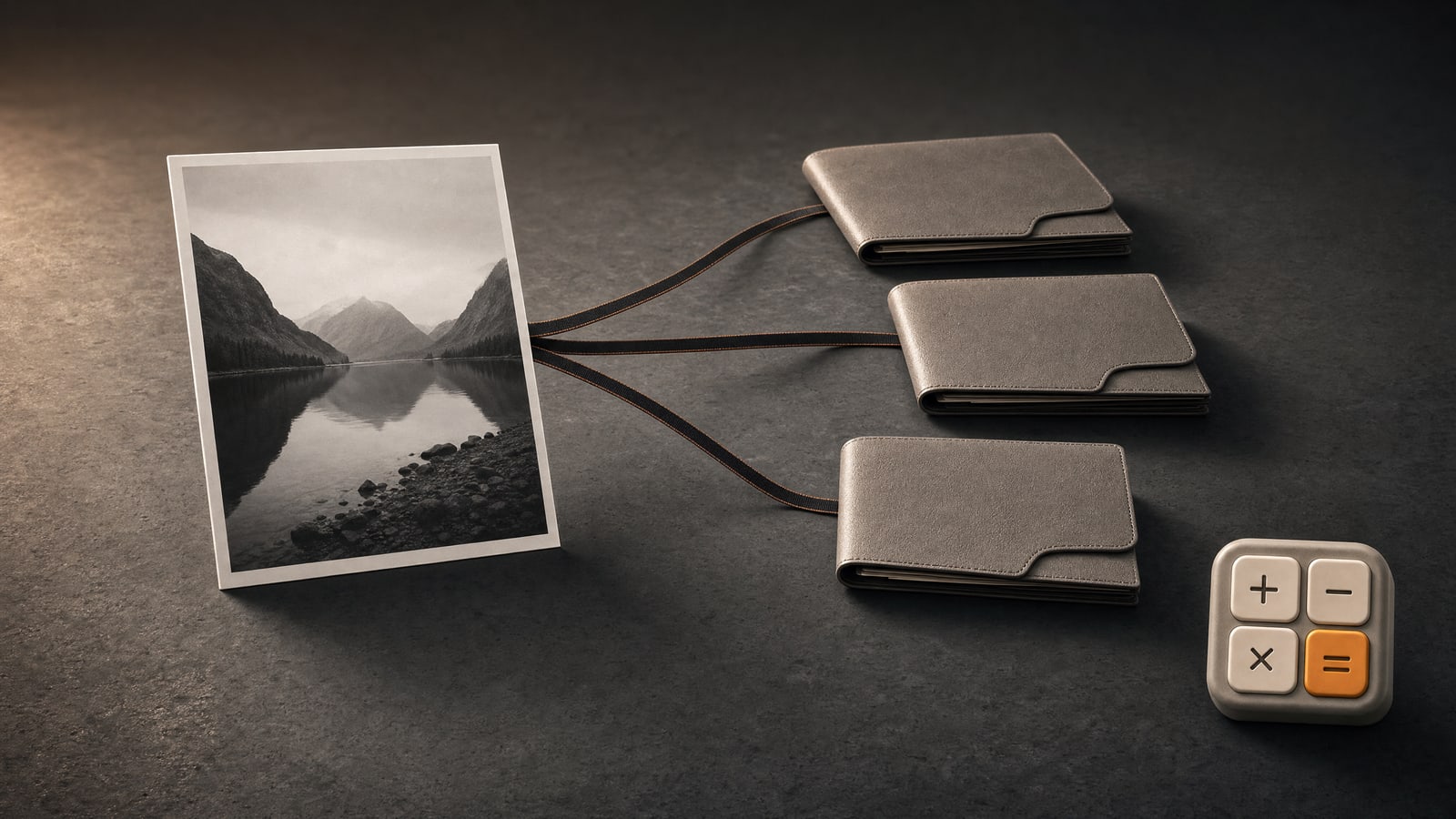
Apple Photos provides one system Hidden collection, not several independently locked Hidden albums. Ordinary albums can organize photos, but they remain part of the same Photos library and do not receive their own private lock. For separate private folders, use a dedicated vault and keep verified copies before deleting anything from Photos.
Apple Photos has one Hidden collection
When you hide a photo or video, Photos moves it into the Hidden collection under Utilities. Apple does not provide a control for creating Hidden 2, Hidden 3, or separately locked variations of that system collection.
On iOS 16 and later, Hidden is locked by default. You can also stop the collection from appearing in the Photos interface. Apple describes the current visibility and authentication behavior in its Hidden album guide.
Ordinary albums organize but do not add another lock
Ordinary albums are useful for projects, people, or events. They are organizational views inside the Photos library. Adding a photo to one does not turn that album into a separately encrypted container or give it a different password.
| OPTION | ORGANIZES | SEPARATE LOCK |
|---|---|---|
| Ordinary album | Yes | No |
| Hidden collection | One protected system collection | Uses iPhone authentication |
| Separate vault folders | Depends on the vault | Uses the vault’s access model |
Use private folders when categories need the same vault lock
A separate vault can make sense when you need several categories behind an access flow that is different from Photos. Calculator Lock’s Premium vault supports folders for photos, videos, files, and notes behind a calculator-code flow. Vault content is encrypted locally, with no Calculator Lock account, launch cloud backup, or cross-device sync.
That does not make folders independent vaults. They share the vault’s access and subscription boundary. For a practical structure that remains usable, see how to organize private files in folders.
- Use one folder per retrieval task, such as identity records or a current project.
- Avoid creating a folder for every file type.
- Keep names understandable if they later appear in an export destination.
The private photo vault overview explains the broader storage and access tradeoffs.
Keep the Photos original until the copy is verified
- Import a small group into the destination vault.
- Open the copied photos and play copied videos.
- Confirm that the items appear in the intended folders.
- Test the destination’s access and export path.
- Delete from Photos only after those checks pass.
A Calculator Lock import creates another copy and leaves the Photos original unchanged. If iCloud Photos is enabled, later deletions in Photos propagate across synced devices. Follow the copy and verify workflow before removing originals.